Getting Started
See our website for details on the game.
Notice: These docs are in progress and may be incomplete. If you have any questions or feedback, please let me (@thedevbird) know in our Discord server.
Installation
Download the latest release of Airwave from our Itch page: https://arwv.cc/itch.
Once downloaded, simply extract the archive (zip for Windows and .tar.gz for Linux) and enter the airwave-* folder that is extracted.
Running Airwave
In the airwave-* folder, you'll see the airwave (or airwave.exe) executable. Run that to open the launcher.
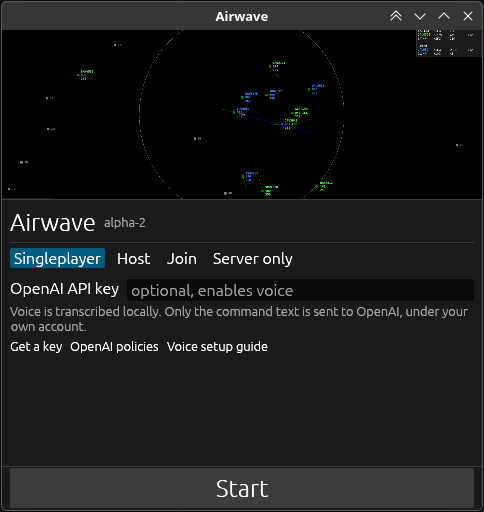
The launcher will manage the client and the server automatically for singleplayer, multiplayer, and more. You can also add your OpenAI API key here to enable voice mode (see Voice Mode for more details).
Voice Mode
Airwave provides two modes of interacting with aircraft: text mode (shorthand) and voice mode. Text mode is always enabled; you can find our syntax guide here
Voice mode is a feature that allows you to use your voice to command aircraft. It's disabled by default as it requires an OpenAI API key.
To enable voice mode, you'll need to add your OpenAI API key in the launcher.
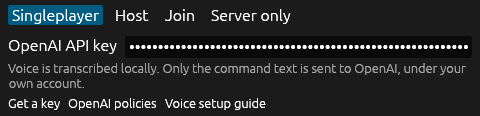
Once you've added your API key, simply restart the client and voice mode will be enabled.
Getting an OpenAI API key
If you don't have an OpenAI API key, you can get one by creating an account at https://platform.openai.com/login.
Once you've created an account, you can get your API key at https://platform.openai.com/api-keys. If you choose restricted permissions (recommended), make sure to set Model capabilities > Responses to Write and Model capabilities > Chat completions to Request.
(check out this other guide if you're confused)
Then, add your API key in the launcher as shown above.
Do I need a credit card?
No, not by default. OpenAI gives new accounts $5 in free credits with no credit card required, though they do expire after 3 months. Once the free credits expire, you will need to link a credit card to top-up your account.
Cost & Usage
If you're worried about cost, don't be! Regular usage equates to pennies (literally). In our experience, playing the game with two people both using the same API key, we collectively used a total of 3 cents in usage for the full two-hours of gameplay, so it's incredibly cheap to use.
Airwave only uses text completions from OpenAI and does not use expensive thinking/reasoning models, audio generation or transcription, or any other more expensive offerings from OpenAI. Just cheap LLM completions with gpt-4o-mini.
Troubleshooting & Help
If you run into any issues with installation or running Airwave, please reach out to me in our Discord server, or email us at [email protected].
Gameplay
Notice: These docs are in progress and may be incomplete. If you have any questions or feedback, please let me (@thedevbird) know in our Discord server.
Comms
Sending commands with text (called "shorthand")
Select an aircraft by clicking it in the radar or type its callsign into the chatbox. Then, write the command you want to run (see the in-game Command Reference or the web version here), pressing enter to send it.
Sending commands with your voice
To use your voice, you'll need to add an OpenAI API key in the launcher, as explained in full in this doc.
Once that's set-up, simply press and hold the spacebar to record a command. This will transcribe your voice locally, then send the resulting transcription to a cloud LLM to turn that transcription into valid ATC commands.
If you mess up during recording, while the spacebar is still pressed down, you can press the Escape (Or "Esc") key to discard the recording. Note that this can only be done while spacebar is pressed.
Air control (approach and departure)
Airwave provides two major roles for the air controller: Approach and departure.
Alpha Note: "Center" or en-route control (ARTCC) is not yet implemented as a full-on dedicated role, though you can still adjust aircraft while their en-route if you'd like (no restrictions).
Arrivals
Airwave randomly positions 11 airports (and airspaces) around the game world on startup.
Alpha Note: We only have KSFO modeled as of now, so this model is used for the main airport and the other random airports. We plan on adding more in the future, of course, along with placing airports as they are in the real-world once they're modeled.
Your Airspace
In the approach view, you'll see the circular boundary of your airspace.
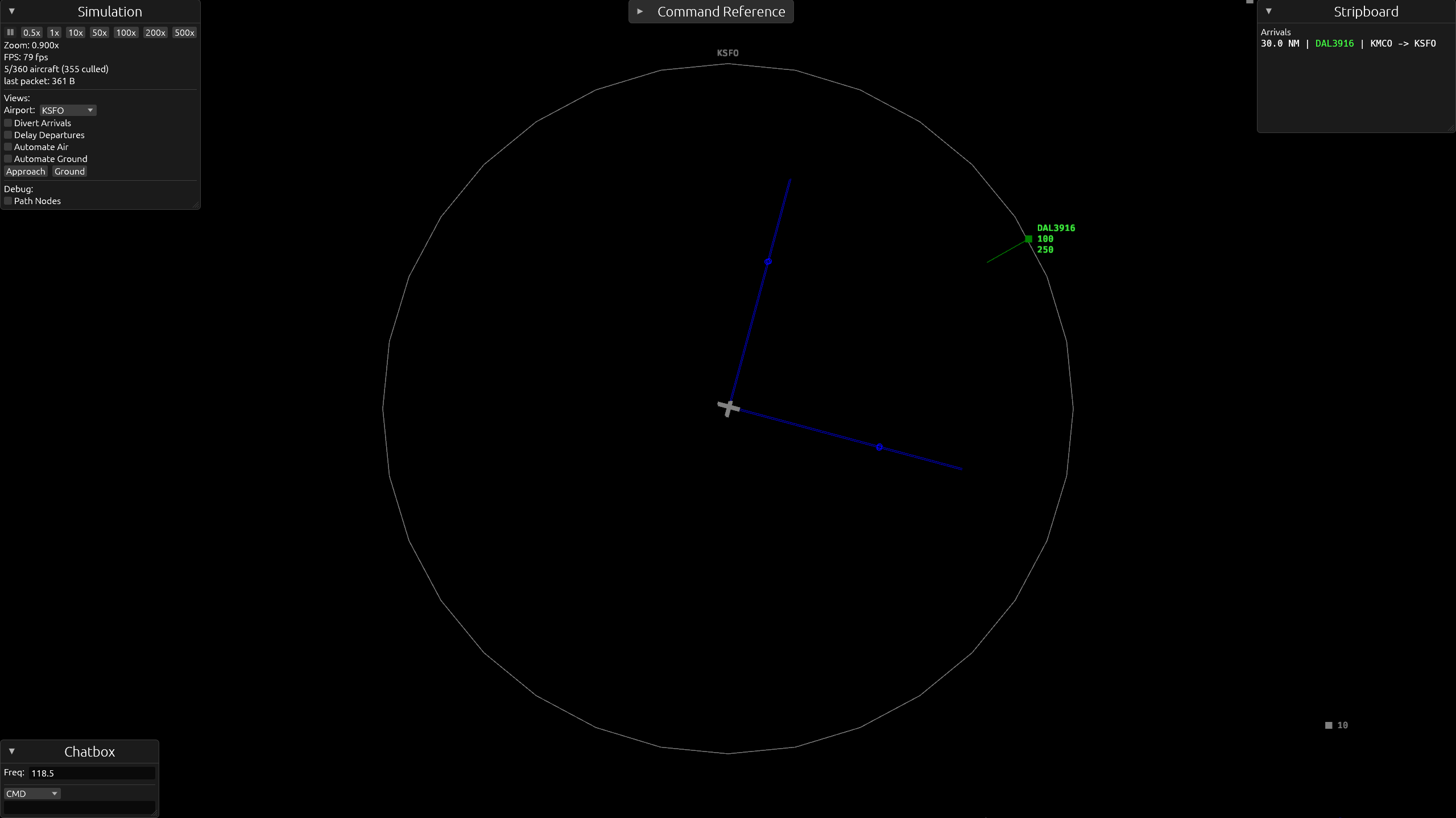
Aircraft within your airspace are under your jurisdiction. Once an arrival enters your airspace, it's yours.
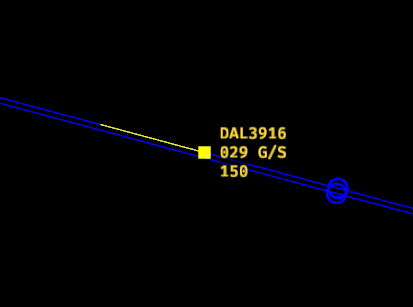
Arrivals are green, departures are blue (more on them later). Grey aircraft are unrelated to your airport, and aren't your responsibility.
Alpha Note: Arrivals don't follow STAR or other waypoints as no waypoint-based procedures exist yet. Instead, they fly direct to your airport.
Vectoring for approach
Arrivals want to land (any runway you choose). Vector them using heading commands, adjusting speed if necessary (180-250kt).
For example:
Voice: "American 8450, turn left heading 120 degrees, descend and maintain 4,000 feet."
Shorthand:
AAL8450 hdg 120, alt 040
Altitude should around 2,000ft to 5,000ft for landing. The dot on the localizer line shows the minimum distance an aircraft at 4,000ft can enter the approach at.
RBL tool
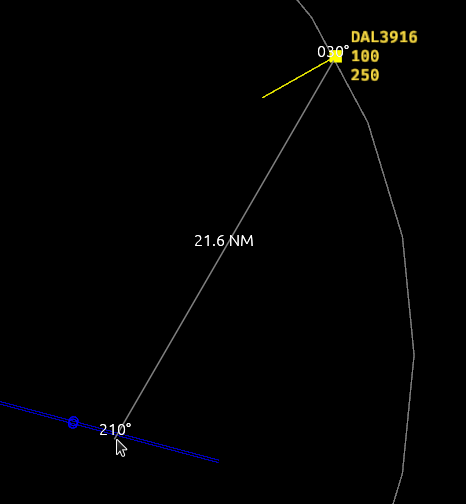
This tool helps with finding right heading to give an aircraft and measuring distance. Right-click and drag to calculate the distance and bearing between the start and end points of the drag.
Landing
Once you clear an aircraft for approach, it will land without further instruction. If multiple people are managing an airport, one on tower and ground, and one on approach and departure, the tower/ground controller may use the "Cleared to land" phraseology if they wish (just for practice), but it won't do anything if the aircraft is already on approach or landing.
For example:
Voice: "Delta 3916, cleared ILS approach runway two eight right."
Shorthand:
DAL3916 cl 28r
Departures
Departures (blue) are yours once they're past 2,000ft after takeoff.
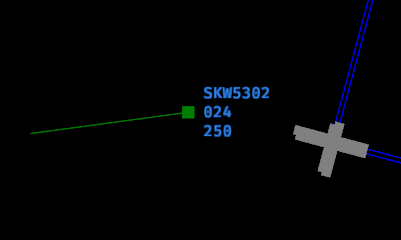
They automatically follow their flight plan (direct to their destination) and don't need your attention.
However, if they might interfere with your arrivals or other departures, you can vector them accordingly. Make sure to place them back on their flight plan before they leave or once they're clear of the conflict so they go back on their way.
Voice: "Skywest 5302, resume as filed." or "Skywest 5302, resume own navigation."
Shorthand:
SKW5302 raf
Ground control (tower and ground)
Airwave also provides ground operations, including tower. Both are designed to be one role, where a player takes on both responsibilities of tower and ground, such as clearing takeoffs and issuing go-arounds, along with their duties as ground.
Alpha Note: This may change in the future as we improve the realism and scope of operations for each role. For now, tower and ground can be considered the same role & facility.
Ground Radar
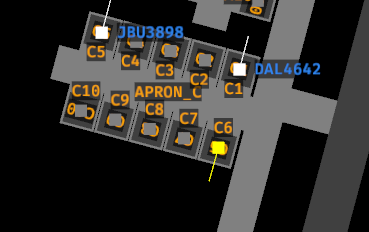
To access the ground view of your airport, simply zoom in far enough or use PageUp and PageDown to quickly switch between them.
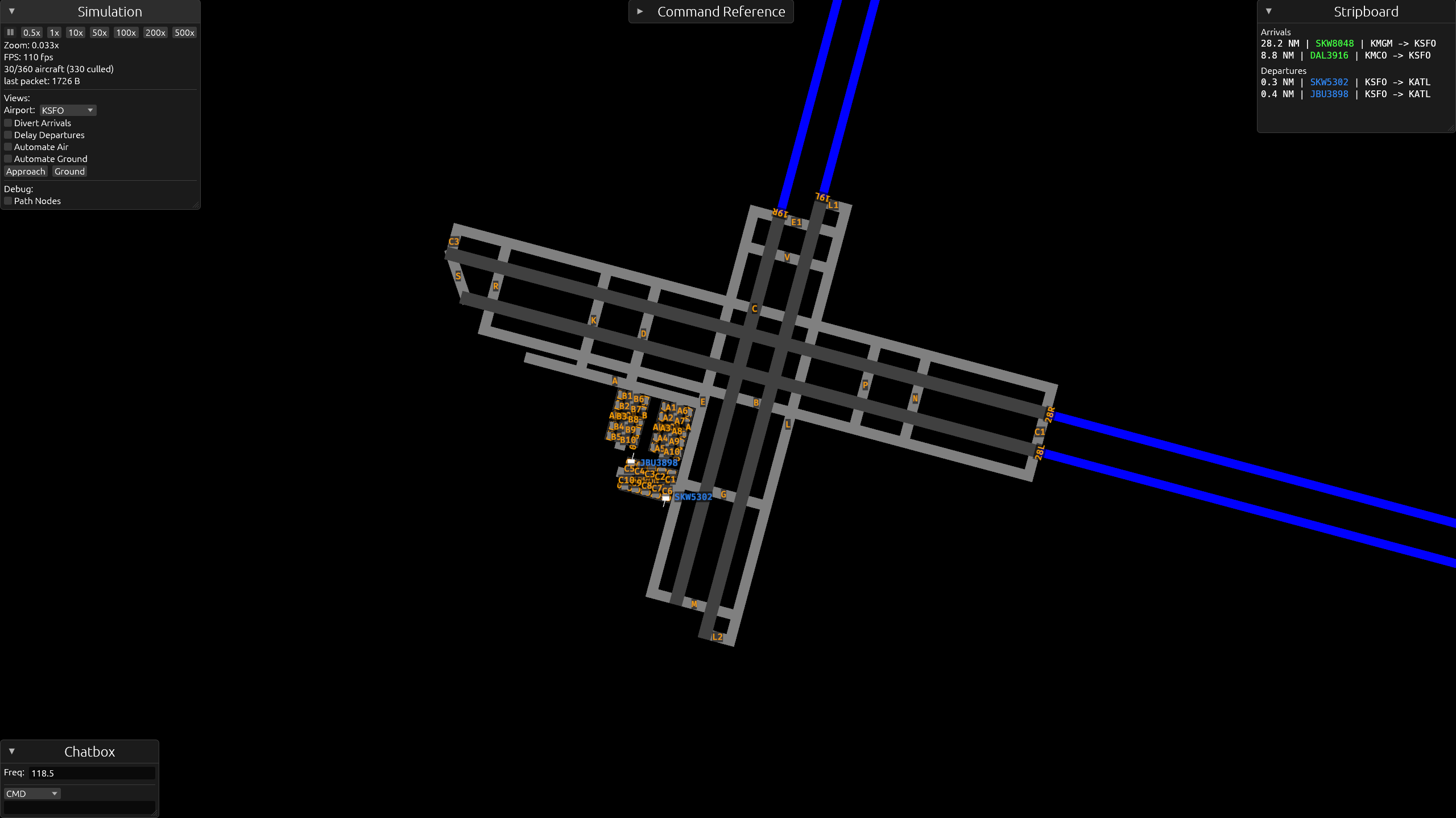
Your main responsibility of ground control is taxiing deparutures from the gates to a runway, and arrivals from a runway to the gates.
Taxiing Departures for Takeoff
Dormant aircraft (grey) that are parked at a gate will turn into departures (blue). The "spawning" is handled by the spawn system.
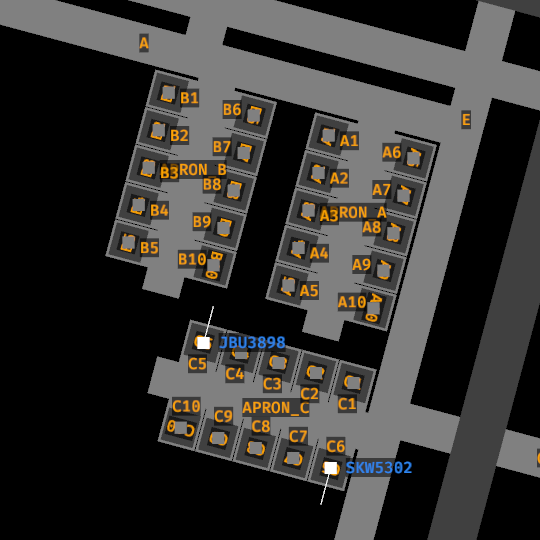
Once a departure shows up, taxi them to any runway of your choosing.
Alpha Note: Pushback is planned, but has not implemented yet. For now, once a departure becomes available, you can taxi them immediately (no pushback).
Before issuing a taxi command, it's recommended to select the aircraft first so you can verify the taxi path that's generated before moving onto other aircraft or responsibilities.
Taxi commands can be done in one shot, or progressively. Let's go over the former first.
Example of a one-shot taxi command.
Voice: "Skywest 5302, runway two eight right, taxi via Golf, Lima, Bravo, November."
Shorthand:
SKW5302 tx short 28r via g l b n
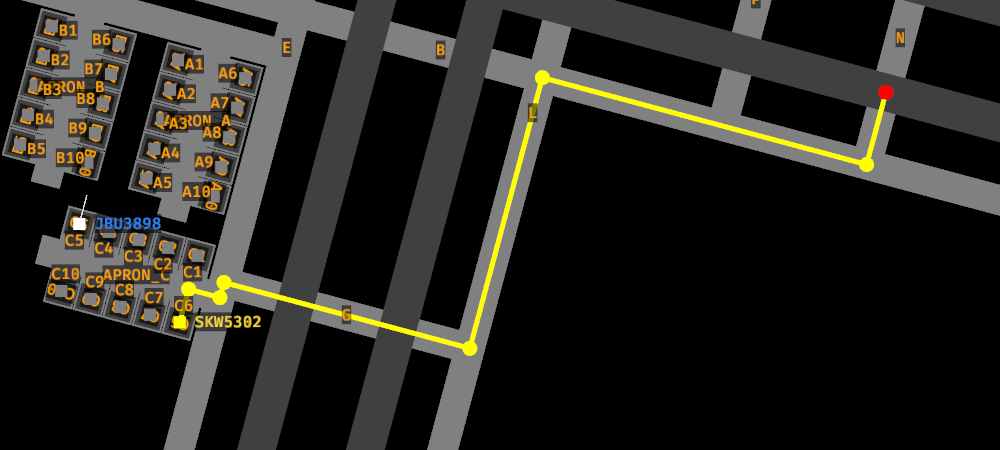
Progressive taxi, using the same "taxi" command, allows you to move aircraft arbitrarily without requiring a runway or gate to be the target. You can simply say:
Voice: "Skywest 5302, taxi short of Lima via Gold."
Shorthand:
SKW5320 tx short l via g
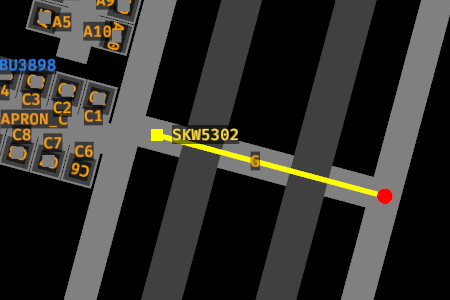
And the aircraft will hold at Lima, waiting for further instruction.
This is is useful for managing congestion, such as moving aircraft to arbitrary holding points to keep your taxiways clear while waiting for available gates.
Runways and Crossing
Aircraft will always hold short of a runway in their taxi command. To let an aircraft cross a runway (or taxi onto it), say "cross" before the runway.
Voice: "Skywest 5302, taxi to Bravo via Alpha, cross runway one eight left, Charlie."
Shorthand:
SKW5302 tx b via a cross 18l c
Alpha Note: Only runways that are in the taxi command are held short of. If the generated taxi path crosses a runway you didn't mention, the aircraft will cross it without stopping, so make sure to check the path first. This will be fixed once the pathfinder is rewritten.
To move an aircraft onto the runway for departure, use line up and wait or cleared for takeoff (below).
Takeoff
Once an aircraft is on it's way to a runway, you can tell it to line up and wait or clear it for takeoff. They don't need to be holding short of the runway to do this, as long as they have the runway on their path, you can instruct either.
A line up and wait command will instruct the aircraft to line up and wait on a runway.
Voice: "Skywest 5302, runway two eight left, line up and wait."
Shorthand:
SKW5302 lu 28l
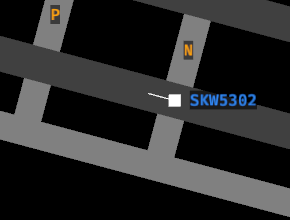
Takeoff works as you'd expect.
Voice: "Skywest 5302, runway two eight left, cleared for takeoff."
Shorthand:
SKW5302 ct 28l
Before taking an aircraft off, make sure to check for incoming landings so they don't collide with the landing aircraft. While in the ground view, the runway alerts at the top of the screen show which runways are in use: LDG means an aircraft is landing on that runway (2NM out), and OCC (red) means the runway is currently occupied.
For a better picture of the landing traffic, switch to the air view (PgUp).
Alpha Note: It is not yet possible to abort a takeoff, though this is planned for future releases.
Taxiing Arrivals to Gates
Once arrivals are stopped on a runway, you can taxi them to a gate.
Pick any gate you'd like them to go to and issue a taxi command to it.
Voice: "Delta 3916, taxi to gate Alpha One via Delta, Alpha."
Shorthand:
DAL3916 tx gate a1 via d a
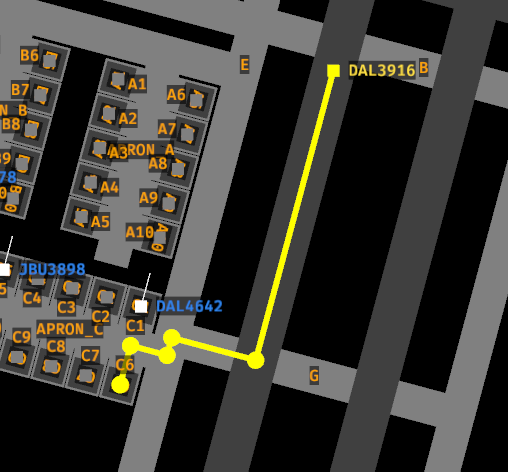
Once parked at a gate, arrivals will become dormant (grey) and no longer need your attention.
Command reference
View the command reference in the in-game window or view it online here for a list of all commands and how to use them.
Controls
Notice: These docs are in progress and may be incomplete. If you have any questions or feedback, please let me (@thedevbird) know in our Discord server.
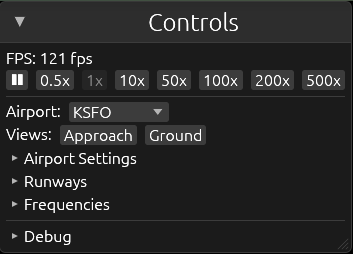
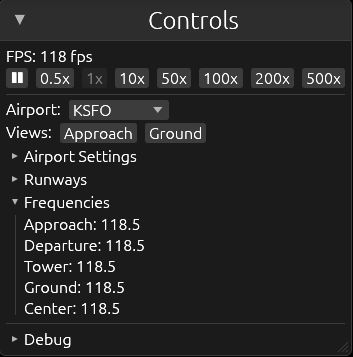
The Cntrols menu.
Enable or disable active runways
You can enable and disable which runways are active for arrivals and departures. Simply check and uncheck the "ARR" or "DEP" boxes to enable a runway for arrival or departure (or click "Both" to enable both arrivals and departures; click it again to disable both).
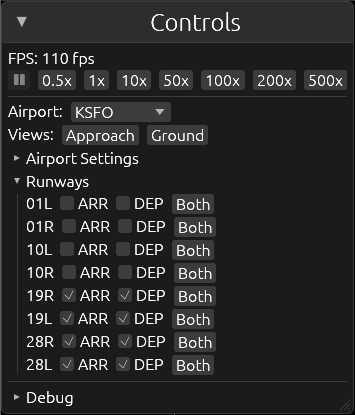
If a runway is disabled for arrivals, Auto ATC won't sequence arrivals to land on that runway. Conversely, if a runway is disabled for departures, Auto ATC won't sequence departures for takeoff on that runway.
Workload tools
Airwave comes with four workload settings for each airport. These help you manage your workload and split work between you and Auto ATC.
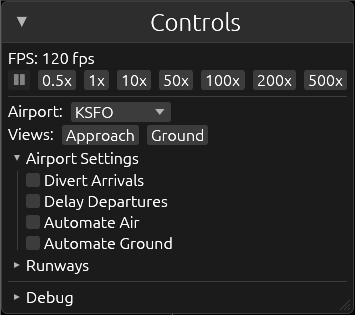
The first two settings determine how new arrivals and departures are handled.
Divert Arrivals
If enabled, if an arrival crosses into your airspace, it will automatically be deverted back to its originating airport. This will not affect aircraft already within your airspace.
If disabled (default), incoming arrivals will cross into your airspace, under your jurisdiction for vectors to land.
Delay Departures
If enabled, no new departures will be created. This will not departures that are already at a gate, waiting for taxi.
If disabled (default), dormant (grey; parked) aircraft will turn into departures once scheduled by our internal scheduling engine.
Auto ATC
The next two settings control whether Auto ATC acts on aircraft in the air and/or ground.
Automate Air
If enabled, Auto ATC will handle all aircraft in the air, vectoring approaches to land and ensuring departures are following their flight plan. This will affect all airborne aircraft within your airspace.
If disabled (default), Auto ATC will not take effect for aircraft in the air.
Automate Ground
If enabled, Auto ATC will handle all aircraft on the ground, taxiing departures for takeoff and arrivals to the gates. This will affect all aircraft on the ground. Auto ATC will not clear an aircraft for takeoff if a landing aircraft is close to touching down on the same runway.
If disabled (default), Auto ATC will not take effect for aircraft on the ground.
Frequency List
You can view the frequency list for the selected airport by expanding the "Frequencies" section.
Multiplayer
Notice: These docs are in progress and may be incomplete. If you have any questions or feedback, please let me (@thedevbird) know in our Discord server.
How to set up your Airwave server and explore the various configurations for multiplayer.
Server Setup
Hosting a server
By default, the launcher is configured to run in "Singleplayer" mode which does open the internal server to the internet.
To host a multiplayer server, you can host a server by selecting the "Host" mode then clicking "Start". This will launch the Airwave client as well. If you wish to host only the server and not the client, you can also run the "Server only" mode.
Next, in your router settings, forward the port 7478 (traffic type is: TCP).
Then, if you share your IP address plus the port, e.g. <your ip>:7478, with your friend, they should be able to connect to your server.
If this doesn't work or you're having trouble, please reach out to us in our Discord, we'd be more than happy to help troubleshoot.
Joining a server
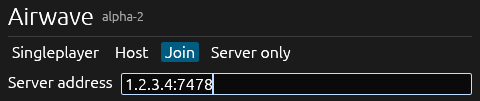
To join an existing multiplayer server, click the "Join" mode and enter the IP address and port of the server, like so:
Multiplayer Roles
Once you and your friend are connected to the same instance, there are various modes of gameplay. You both could manage the same airport, one managing air while the other manages ground. Or, you could manage one airport while they manage another.
If you have more than two people, you can assign each person to a different airport or role.
Server Configuration
There is no configuration needed for assigning roles, that's all up to you, but to make gameplay with multiple players easier, there are a few values that should be adjusted.
In the config.toml, you'll see a world.frequencies.KSFO entry and a world.statuses.KSFO entry.
# this is the default

[world.statuses.KSFO]
divert_arrivals = false
delay_departures = false
automate_air = false
automate_ground = false

[world.frequencies.KSFO]
approach = "118.5"
departure = "118.5"
tower = "118.5"
ground = "118.5"
center = "118.5"
The first, world.statuses, controls the statuses of each airport based on the settings we discussed in the controls doc. To allow a player to control an airport, they can either select the airport from the dropdown and disable automation on the fly:
Or you can have these set when the game starts by modifying them in the config.toml.
The second, world.frequencies how aircraft interpret named frequencies such as "contact approach" or "contact tower", letting you separate frequencies and therefore the messages each player sees in their chatbox (after tuning to the frequency you select).
[world.statuses.KSFO]
automate_air = false
automate_ground = false

[world.statuses.EGLL]
automate_air = false
automate_ground = false

[world.frequencies.KSFO]
approach = "118.5"
departure = "118.5"
tower = "118.6"
ground = "118.6"
center = "118.5"

[world.frequencies.EGLL]
approach = "118.7"
departure = "118.7"
tower = "118.8"
ground = "118.8"
center = "118.5"
In the above example, we have disabled automation for both KSFO and EGLL. Both have their diversions disabled as well, so they accept all incoming and outgoing flights. We have also configured the frequencies to differ between approach and departure for our air controller, and between ground and tower for our ground controller. The center frequency is currently unused and can be left as the default 118.5.
Switching aircraft between frequencies
When you have players working on different frequencies, like in the above example, you'll need to hand off your aircraft to the next controller by instructing them to tune to the frequency of that controller.
Command aircraft to switch to a named controller by using the "contact" command like so:
Voice: "Delta 3916, contact tower."
Shorthand:
DAL3916 f tower
You can also tell them to contact a specific frequency like so:
Voice: "Delta 3916, contact tower on 118.7." or "Delta 3916, tune to 118.7."
Shorthand:
DAL3916 f 118.7
Commands
Commands are mirrored from common ATC phraseology. For example, to instruct an aircraft to descend to 4,000 feet, you might say: "SkyWest twelve thirty four, descend and maintain four thousand feet."
Because commands are sent through an LLM (GPT-4o-mini), the syntax for the commands is very loose. As long as you make your intentions clear, the LLM should understand and generate the approprate response.
Available Commands:
All commands should be prefixed with an aircraft's callsign, such as SkyWest Twelve Thirty Four, or `SkyWest One Two Three Four.
In shorthand, separate multiple commands for one aircraft with a comma, and commands for multiple aircraft with a semicolon, e.g. SKW1234 t 360, a 040; DAL3916 s 210.
Air
Altitude
Normal Syntax:
<climb|descend> [and maintain|to] <feet> feet<climb|descend> and maintain flight level <flight level>
Shorthand Syntax: a, alt, altitude: descend and maintain 4000 feet = a 040
Changes the altitude of the aircraft.
Examples:
climb and maintain flight level one four zerodescend and maintain four thousand feet
Heading / Turn
Normal Syntax: turn [direction] heading <heading>.
Shorthand Syntax: t, turn, h, hdg, heading: turn right heading 360 = t 360
Changes the direction of the aircraft.
Speed
Normal Syntax: maintain <knots> knots
Shorthand Syntax: s, spd speed: maintain 250 knots = s 250
Changes the speed of the aircraft.
Direct
Normal Syntax: direct <waypoint>
Shorthand Syntax: d, dt, direct: direct waypoint = d waypoint
Changes the aircraft's flight plan to fly directly to a waypoint (that is already in the flight plan).
Frequency
Contact Named Controller
Normal Syntax: contact <controller> [on] [frequency]
Shorthand Syntax: f, freq, frequency, tune, contact: contact departure = f departure
Changes the frequency the aircraft is tuned to, using the frequency configured for that controller in the server config.
Examples:
contact departure
Contact Frequency
Normal Syntax:
contact <controller> on <frequency>tune to <frequency>
Shorthand Syntax: (same as above): contact departure on 123.4 = f 123.4
Changes the frequency the aircraft is tuned to, forcing a specific frequency.
Examples:
tune to 123.4contact departure on 123.4
Approach and Landing
Cleared to Land
Normal Syntax:
cleared to land, runway <runway>cleared ILS approach runway <runway>
Shorthand Syntax: l, cl, land: cleared to land runway 22L = l 22L
Clears the aircraft for ILS approach and landing1.
Examples:
cleared to land, runway zero onecleared to land, runway one four left
Go Around
Normal Syntax: go around
Shorthand Syntax: g, ga, go: go around = g
Instructs the aircraft to abort their landing. Any further commands should follow after go around.
Examples:
go aroundgo around and turn right three six zerogo around, turn right heading zero four zero, climb and maintain four thousand feet
Taxi
Taxi
Normal Syntax: taxi to [and hold short of] <runway|gate|taxiway> [via] <taxiway> [cross <runway>] <taxiway> [then]...
Shorthand Syntax: tx, taxi: taxi to and hold short of runway one two left via alpha then bravo = tx short 12L via a b
Instructs the aircraft to taxi to a runway via a list of taxiways.
Aircraft will always hold short of any runway in a taxi command. To have an aircraft cross a runway (or taxi onto it), put cross before the runway, e.g. taxi to bravo via alpha cross one two left charlie = tx b via a cross 12L c.
Examples:
taxi to and hold short of runway one two left via alpha then bravo then charlietaxi to runway one two left via alphataxi to gate A1 via alpha bravo charlietaxi to and hold short of alphataxi to bravo via alpha, cross runway one two left, charlie
Shorthand Examples:
tx short 12L via a b ctx short 12L via atx gate A1 via a b ctx short atx b via a cross 12L c
Hold
Normal Syntax: hold position
Shorthand Syntax: th, hold, stop: hold position = th
Instructs the aircraft to hold position.
Continue
Normal Syntax: continue taxi
Shorthand Syntax: c, tc, continue: continue taxi = c
Instructs the aircraft to continue taxiing.
Takeoff
Both takeoff and line-up clearances can be given while an aircraft is holding at or taxiing to a runway.
Cleared for Takeoff
Normal Syntax: cleared for takeoff, runway <runway>
Shorthand Syntax: ct, cto, to, takeoff: cleared for takeoff runway 22L = ct 22L
Clears the aircraft for takeoff.
Line Up and Wait
Normal Syntax: line up and wait, runway <runway>
Shorthand Syntax: lu, line, wait: line up and wait runway 22L = lu 22L
Tells the aircraft to taxi onto the runway, line up (to its heading), and wait (until instructed for takeoff).
Departures
Resume As Filed
Normal Syntax: resume as filed
Shorthand Syntax: r, raf, resume, own: resume as filed = r
Clears the aircraft (departure) to climb to their filed altitude and follow their departure waypoints.
Note: This will happen automatically as an aircraft departs to save on workload, but can be overridden by changing its speed, heading, or altitude, and resumed by issuing this command.
Miscellaneous
Ident
Normal Syntax: ident or identify
Shorthand Syntax: i, id, ident: ident = i
Selects the aircraft on the client.
-
Airwave combines the clearence procedures for approaches and landings such that they are interchangable. Once an aircraft is cleared for approach, it does not need to be cleared to land. Thus, the phraseology can be used where "cleared to land runway 22L" and "cleared ILS approach runway 22L" will mean the same thing. ↩