Multiplayer
Notice: These docs are in progress and may be incomplete. If you have any questions or feedback, please let me (@thedevbird) know in our Discord server.
How to set up your Airwave server and explore the various configurations for multiplayer.
Server Setup
Hosting a server
By default, the launcher is configured to run in "Singleplayer" mode which does open the internal server to the internet.
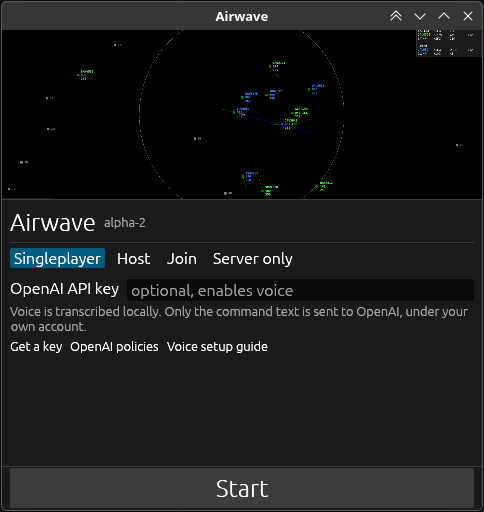
To host a multiplayer server, you can host a server by selecting the "Host" mode then clicking "Start". This will launch the Airwave client as well. If you wish to host only the server and not the client, you can also run the "Server only" mode.
Next, in your router settings, forward the port 7478 (traffic type is: TCP).
Then, if you share your IP address plus the port, e.g. <your ip>:7478, with your friend, they should be able to connect to your server.
If this doesn't work or you're having trouble, please reach out to us in our Discord, we'd be more than happy to help troubleshoot.
Joining a server
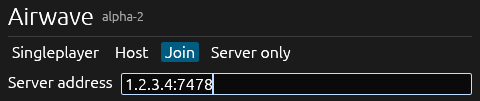
To join an existing multiplayer server, click the "Join" mode and enter the IP address and port of the server, like so:
Multiplayer Roles
Once you and your friend are connected to the same instance, there are various modes of gameplay. You both could manage the same airport, one managing air while the other manages ground. Or, you could manage one airport while they manage another.
If you have more than two people, you can assign each person to a different airport or role.
Server Configuration
There is no configuration needed for assigning roles, that's all up to you, but to make gameplay with multiple players easier, there are a few values that should be adjusted.
In the config.toml, you'll see a world.frequencies.KSFO entry and a world.statuses.KSFO entry.
# this is the default

[world.statuses.KSFO]
divert_arrivals = false
delay_departures = false
automate_air = false
automate_ground = false

[world.frequencies.KSFO]
approach = "118.5"
departure = "118.5"
tower = "118.5"
ground = "118.5"
center = "118.5"
The first, world.statuses, controls the statuses of each airport based on the settings we discussed in the controls doc. To allow a player to control an airport, they can either select the airport from the dropdown and disable automation on the fly:
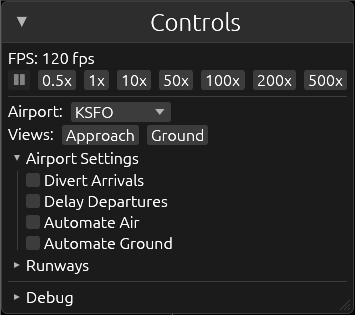
Or you can have these set when the game starts by modifying them in the config.toml.
The second, world.frequencies how aircraft interpret named frequencies such as "contact approach" or "contact tower", letting you separate frequencies and therefore the messages each player sees in their chatbox (after tuning to the frequency you select).
[world.statuses.KSFO]
automate_air = false
automate_ground = false

[world.statuses.EGLL]
automate_air = false
automate_ground = false

[world.frequencies.KSFO]
approach = "118.5"
departure = "118.5"
tower = "118.6"
ground = "118.6"
center = "118.5"

[world.frequencies.EGLL]
approach = "118.7"
departure = "118.7"
tower = "118.8"
ground = "118.8"
center = "118.5"
In the above example, we have disabled automation for both KSFO and EGLL. Both have their diversions disabled as well, so they accept all incoming and outgoing flights. We have also configured the frequencies to differ between approach and departure for our air controller, and between ground and tower for our ground controller. The center frequency is currently unused and can be left as the default 118.5.
Switching aircraft between frequencies
When you have players working on different frequencies, like in the above example, you'll need to hand off your aircraft to the next controller by instructing them to tune to the frequency of that controller.
Command aircraft to switch to a named controller by using the "contact" command like so:
Voice: "Delta 3916, contact tower."
Shorthand:
DAL3916 f tower
You can also tell them to contact a specific frequency like so:
Voice: "Delta 3916, contact tower on 118.7." or "Delta 3916, tune to 118.7."
Shorthand:
DAL3916 f 118.7